Backup & restore
for Victron GX devices
Back up the settings and data of your GX device – at the push of a button, on a schedule on the GX device itself, or over the network for many installations. And restore them in minutes when needed, even to a replacement device.
Private
For your own installation – at home, in a holiday home, on a boat or in a camper van.
- GX-Backup USB Basic or Pro
- €39 or €69 per GX device, one-time, incl. VAT
- private use only: up to 5 licenses, one per GX device
Business
For installers, electrical and solar companies and anyone who looks after many installations.
- GX-Backup USB Pro from 10 licenses
- GX-Backup Server backs up all installations on a schedule
- Prices on request
What is backed up
The data area of the GX device: all settings, network and static IP, VRM access, SSH keys and your own files – with Venus OS Large also Node-RED including its flows.
What is not included
Firmware and root password. The settings in connected devices such as MultiPlus, solar chargers or BMS – they live in those devices and are backed up with VictronConnect or VE.Configure. And whatever is set in the VRM portal.
Private: GX-Backup USB
The program lives on a USB stick in the GX device, and so do the backups. You use it in the browser – on a computer or on your phone. No account, no cloud, no NAS.
For private use only
Basic and Pro at these prices are meant for your own installations – up to 5 GX devices. For customer installations, use in a business or more GX devices, see the offer for businesses.
How it works
Plug a USB stick into the GX device
8 to 64 GB, FAT32. For the backup schedule and the auto-restore file it stays in the GX device.
Double-click the launcher on your computer
Windows or Mac: enter the IP address and root password of the GX device. The launcher copies the program onto the stick by itself – on the same network or remotely via VPN.
“Back up now”
Usually done in 1 to 3 minutes while the GX device keeps running normally. A restore restarts it, and it is back after 2 to 5 minutes.
Once per GX device: on the GX Touch or in the Remote Console, go to Settings › General › Access & Security, choose the access level “Superuser”, set a root password and turn on “SSH on LAN”.
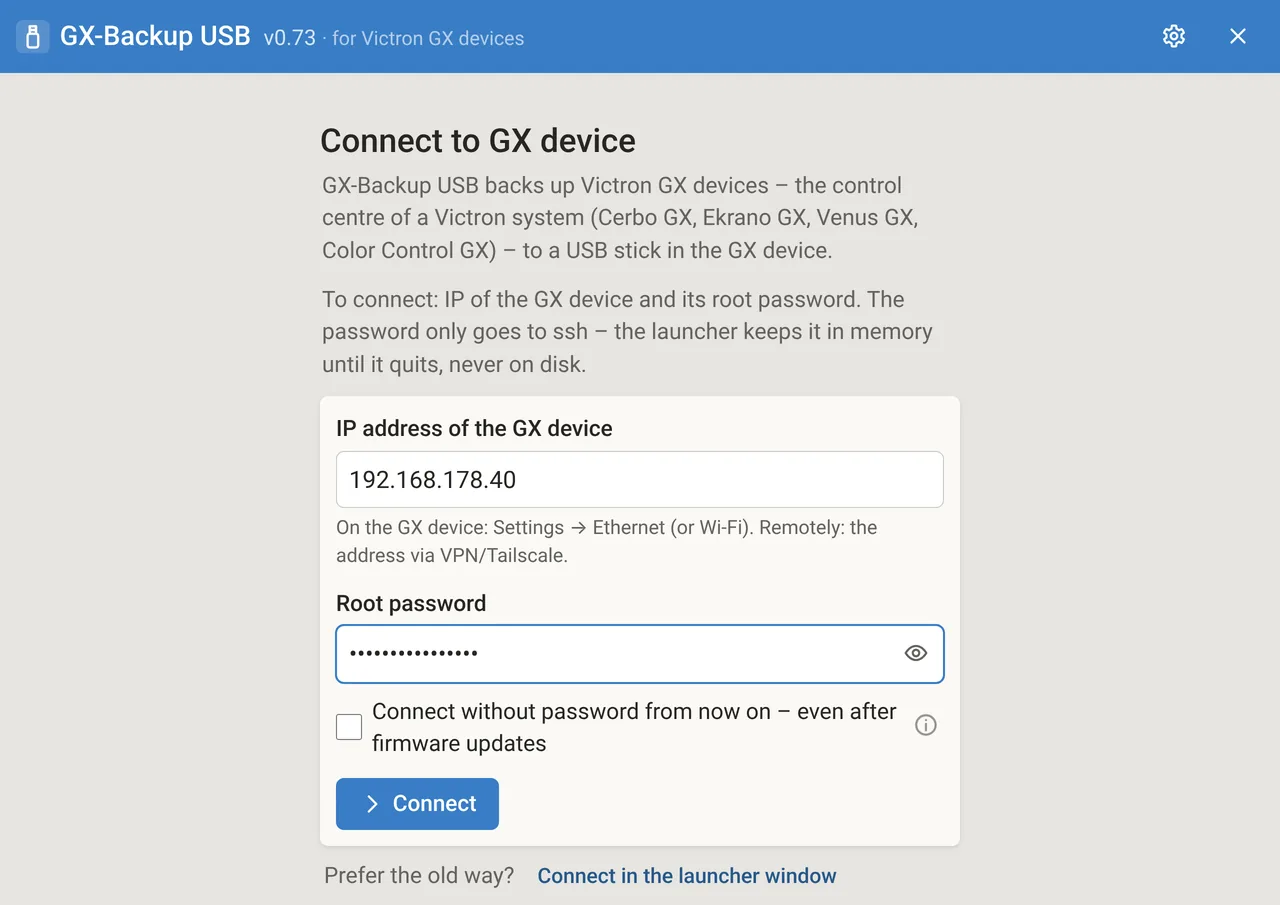
What GX-Backup USB does
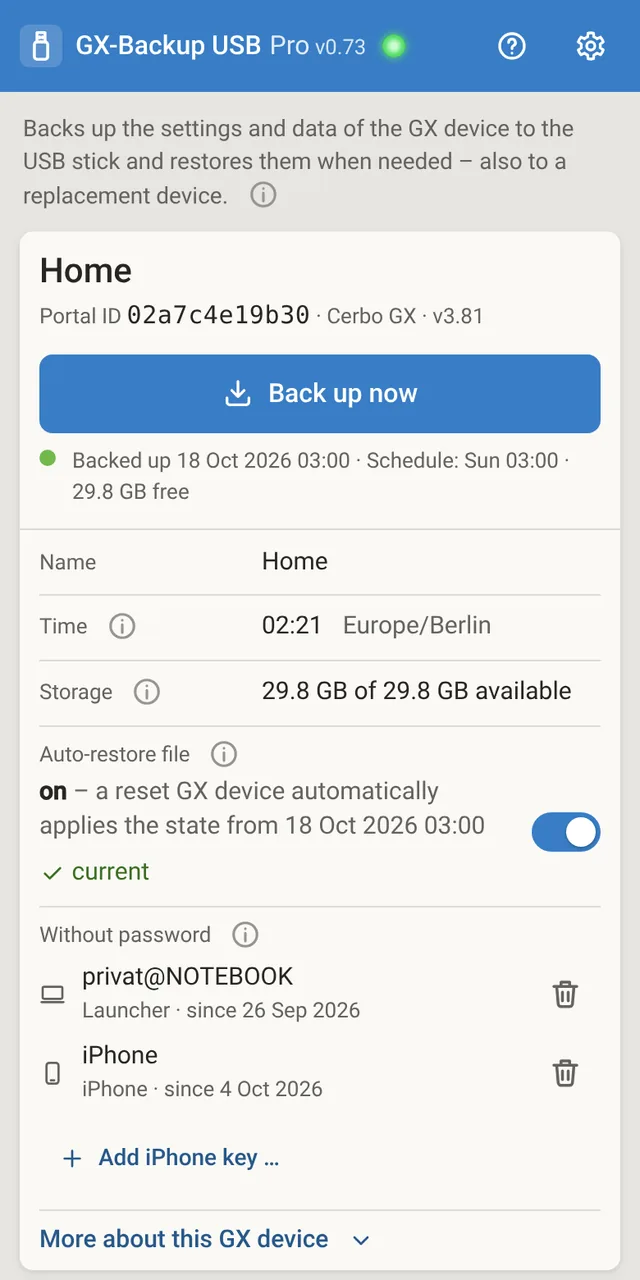
Everything about the GX device on one page Basic and Pro
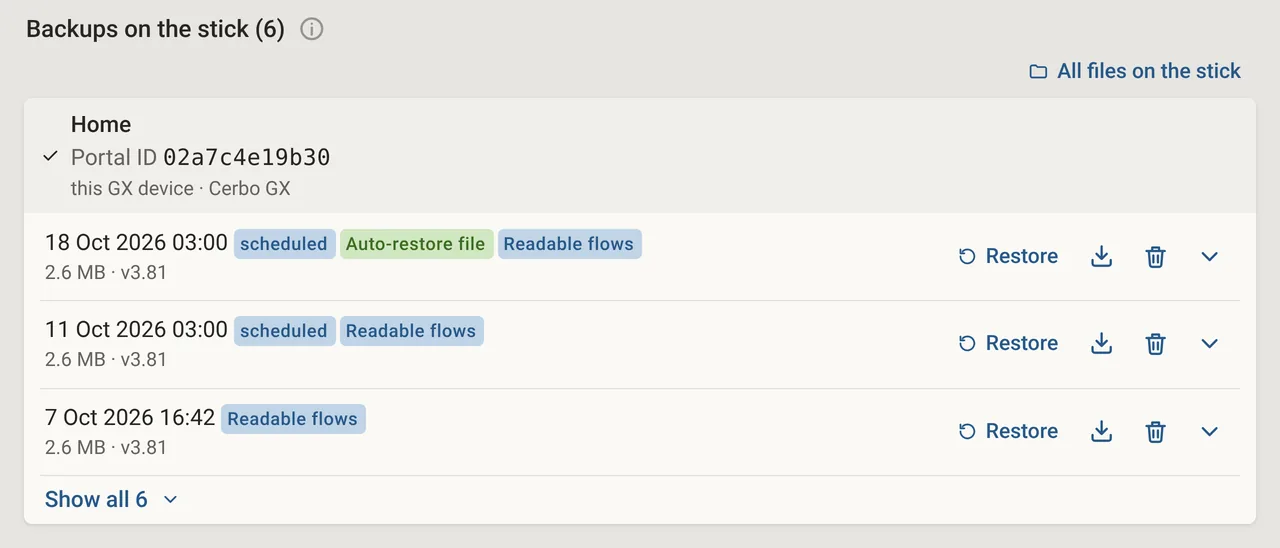
Name, Portal ID, last backup and free space on the stick. “Back up now” saves the current state as a file on the stick. Restore goes back to the same GX device – beforehand, the program automatically makes a safety copy of the current state.
With a key, your computer connects without a password from then on, even after firmware updates.
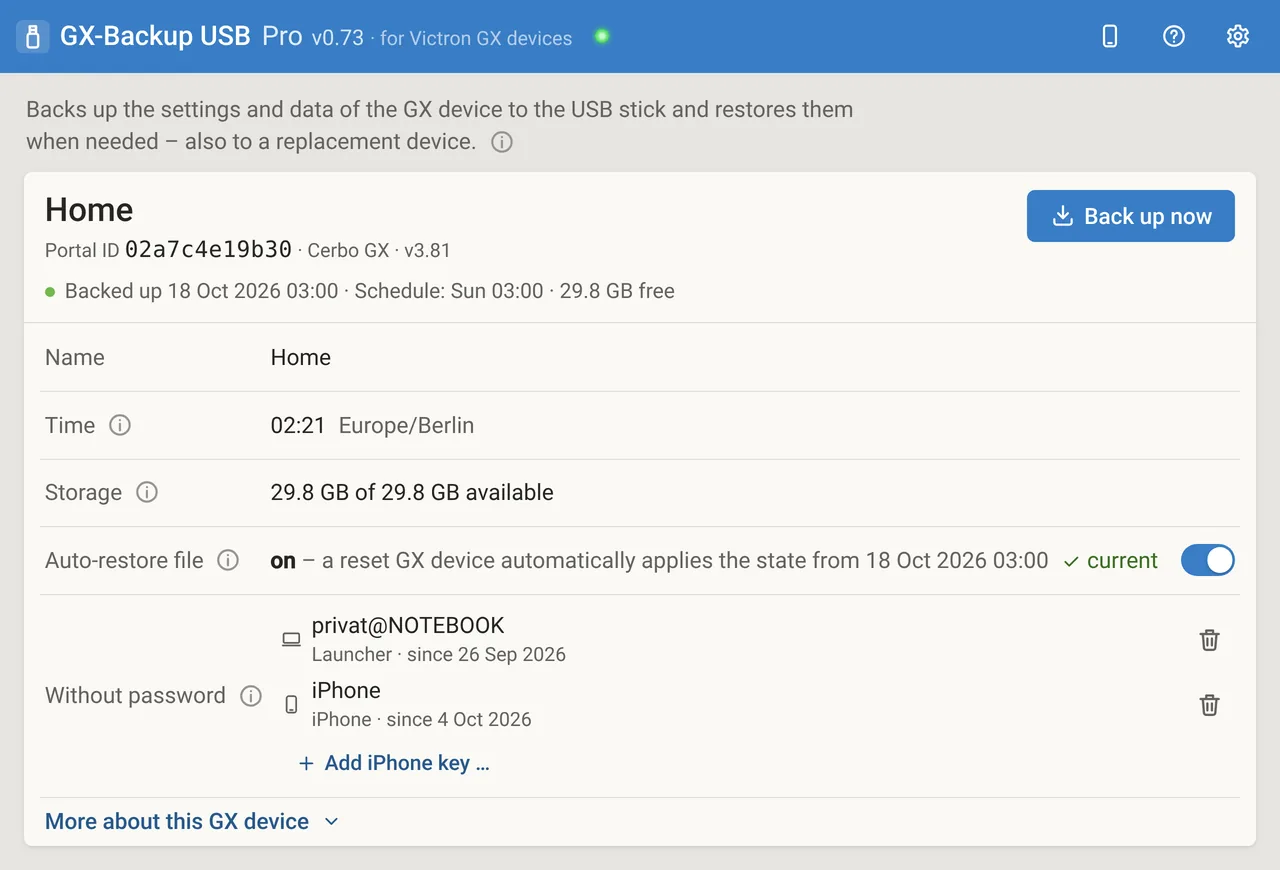
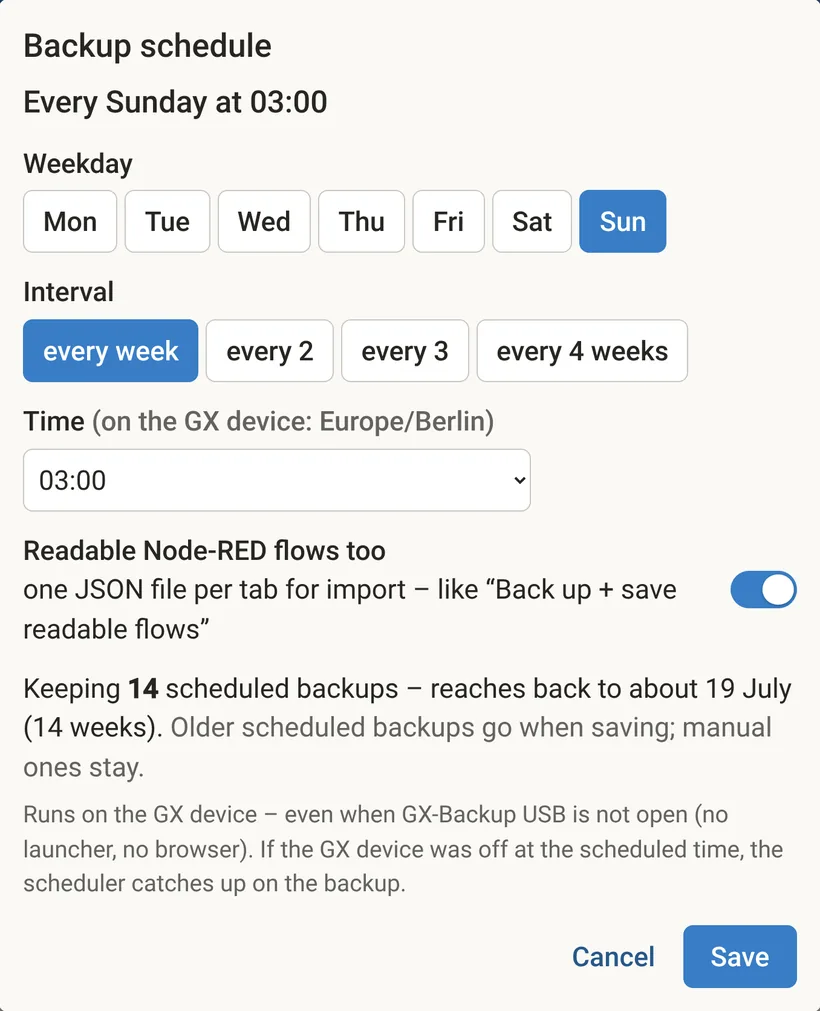
Backup schedule Pro
The GX device backs itself up – on one weekday, every week or every 2, 3 or 4 weeks, on the hour. The schedule runs on the GX device, even when no computer is switched on. If the GX device was off at the scheduled time, it catches up on the backup.
14 scheduled backups are kept; the schedule never deletes backups made by hand.
Auto-restore file Pro
The newest backup is also stored as an auto-restore file in the root folder of the stick. If the GX device is set up from scratch – factory reset or firmware from the SD card – Venus OS restores the last state by itself: once, and only on the same GX device.
If you want to set up a GX device from scratch on purpose, turn off the auto-restore file first or unplug the stick.
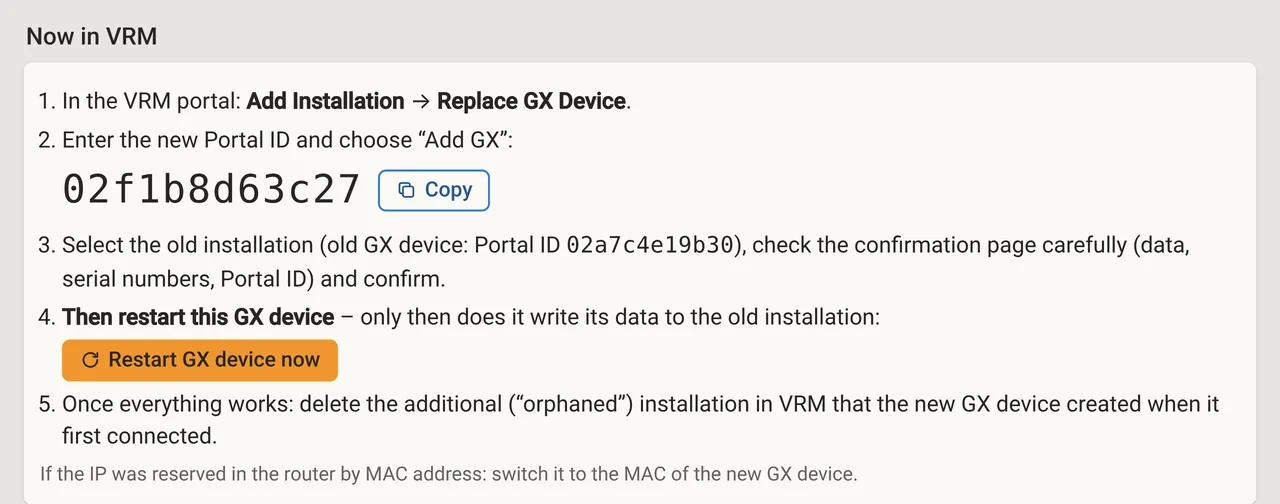
Replace hardware Pro
GX device broken? The new one takes over the backup of the old one, including network, static IP and keys. Then the page shows the steps in the VRM portal with the new Portal ID ready to copy – so the data keeps flowing into the old installation.
“Copy settings”, by contrast, only copies the settings to a second GX device; its network and VRM access stay its own.
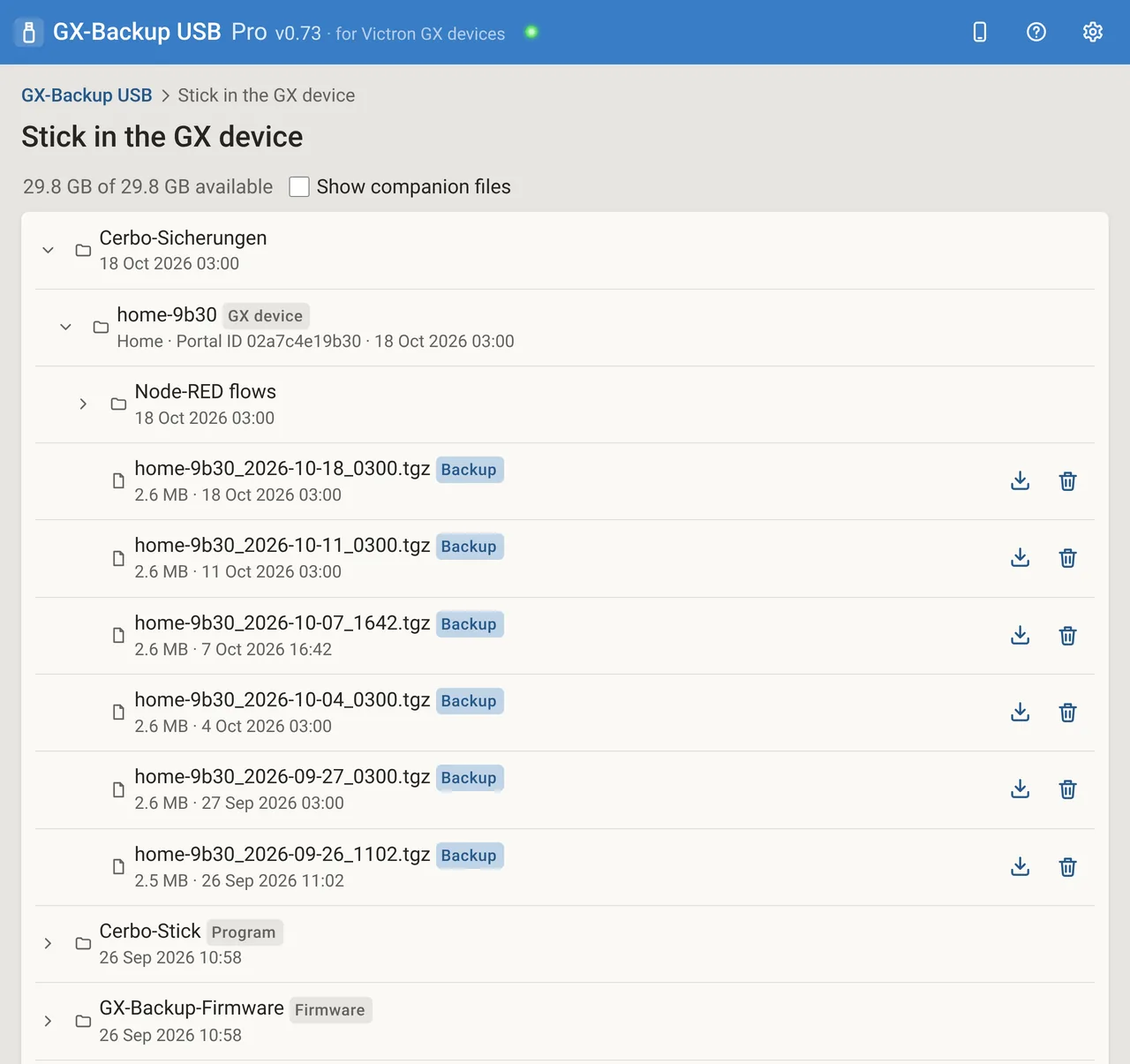
Stick explorer Pro
All files on the stick, as in a file manager: backups, auto-restore file, readable Node-RED flows and license. Every file can be downloaded; backups can be deleted after a confirmation.
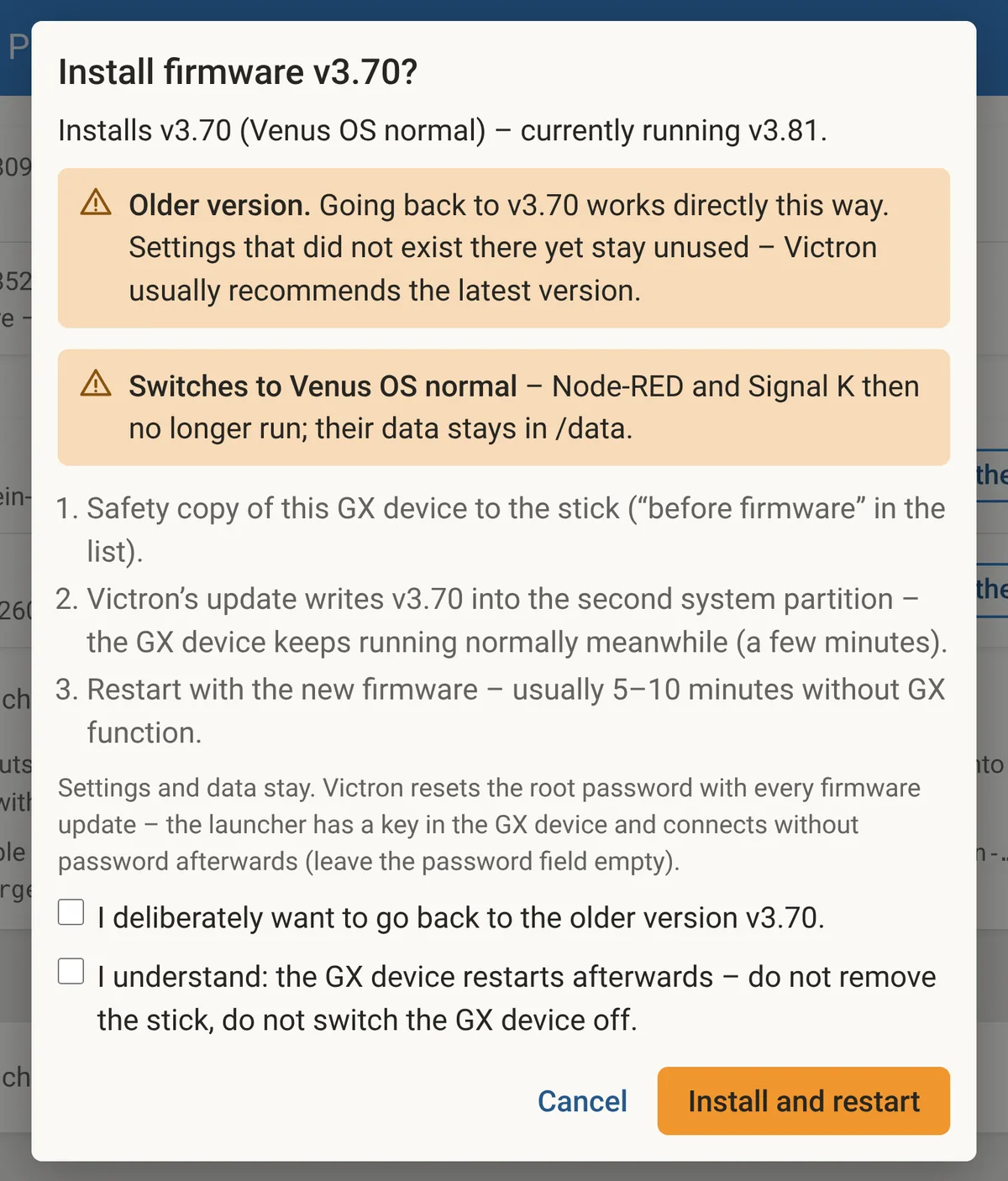
Install firmware Pro
A firmware file from Victron onto the GX device from your computer – also an older version than the one running, without putting the file on the stick by hand and starting an update on the GX device. GX-Backup USB backs up the GX device first, then Victron’s own update writes the firmware. Settings and data stay.
The page checks whether the file fits the GX device. Going back to an older version needs an extra tick. The previous firmware stays stored on the GX device – “Boot …” brings it back with a restart.
On your phone Basic and Pro
The page also works in a phone browser: via a QR code from the launcher, on the same network or via VPN. Without any computer at all, an iPhone shortcut starts it once the program is on the stick.
Readable Node-RED flows Pro
One JSON file per tab for import into Node-RED – with Venus OS Large.
Without password
Connect with a key. The launcher keeps the password in memory only.
German and English
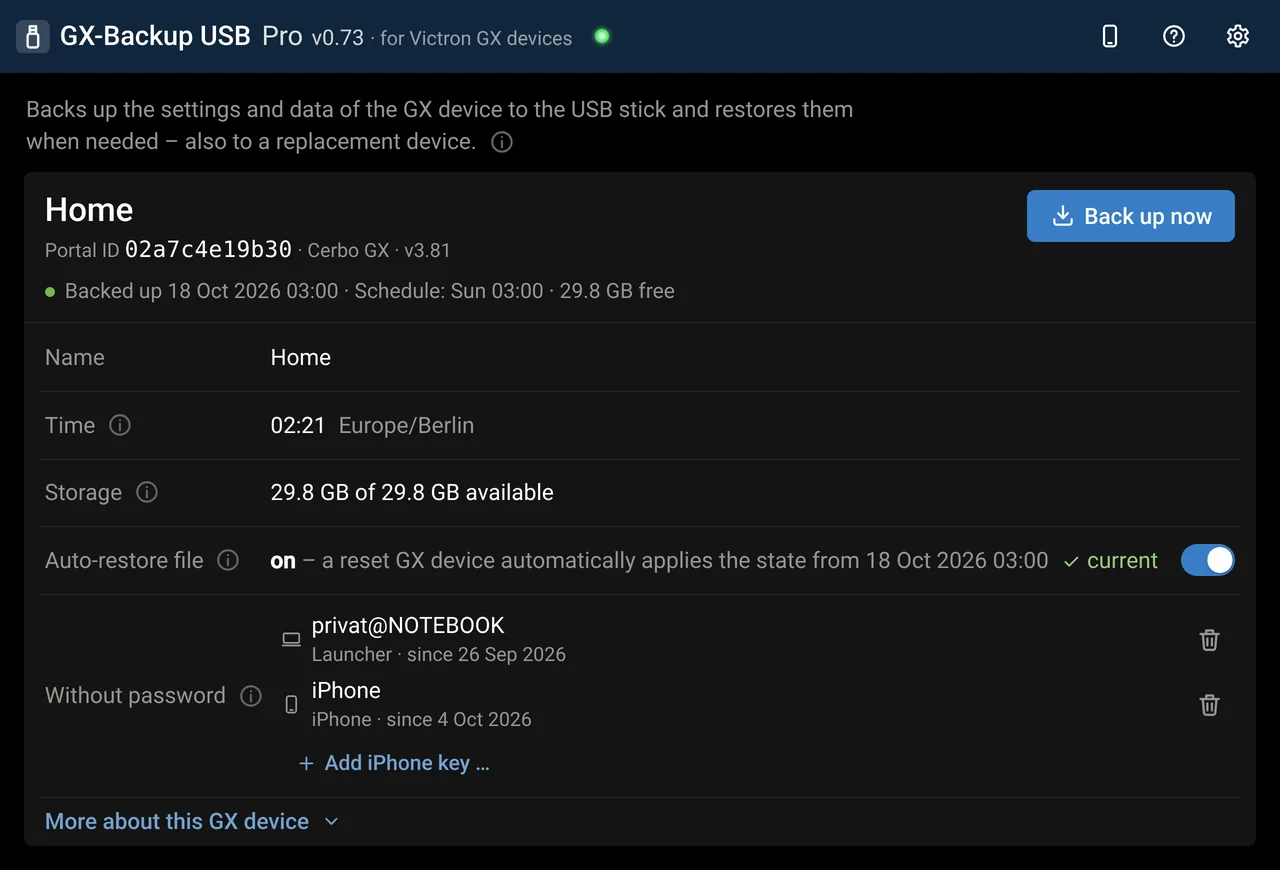
Language and appearance – light or dark – under the gear at the top right of the program.
Stays with you
The backups stay on the stick in the GX device. The license is checked without internet.
Editions and prices
Trial
30 days, all features of Pro
- Every GX device gets its own 30 days
- Download without signing up
- Restoring keeps working afterwards, even without a license
gx-backup-usb_v0.73.zip, about 1.2 MB
Basic
one-time, incl. VAT
- Back up now, restore to the same GX device
- Safety copy before every restore
- Launcher for Windows and Mac, on your phone
- Connect without password
- Help in the program and community
Payment via Polar – have your Portal ID ready
Pro Recommended
one-time, incl. VAT
- Everything in Basic
- Backup schedule on the GX device
- Auto-restore file
- Replace hardware, copy settings
- Stick explorer, readable Node-RED flows
- Install firmware, also older versions
Payment via Polar – have your Portal ID ready
For private use only, up to 5 GX devices. Each license belongs to one GX device, identified by its Portal ID (12 characters, shown in the program and in VRM).
From Basic to Pro: €49. Upgrade to Pro. Polar handles checkout, invoice and VAT as the merchant of record.
| Feature | Trial | Basic | Pro |
|---|---|---|---|
| Back up now, restore to the same GX device | yes | yes | yes |
| Launcher for Windows and Mac, on your phone, without password | yes | yes | yes |
| Replace hardware, copy settings | yes | no | yes |
| Auto-restore file | yes | no | yes |
| Backup schedule on the GX device | yes | no | yes |
| Stick explorer, readable Node-RED flows | yes | no | yes |
| Install firmware, also older versions | yes | no | yes |
| Help in the program, community | yes | yes | yes |
After the 30 days, without a license only restoring works – including the safety copy beforehand – plus the list, download and upload. Nobody loses access to their backups. Personal support by e-mail is only available for businesses.
Download the trial
No sign-up. Without a license, every GX device gets 30 days with all features.
gx-backup-usb_v0.73.zipabout 1.2 MB
Backing up and restoring are at your own risk. GX-Backup USB is carefully tested, so far on Cerbo GX; for liability, see the license terms (in German).
‹SHA-256 of the uploaded file›Requirements
- GX device
- Victron GX device with Venus OS (Cerbo GX, Ekrano GX …), root password set, “SSH on LAN” on. Tested on Cerbo GX.
- Computer
- Windows 10/11 or Mac (Linux works too), on the same network as the GX device or via VPN
- USB stick
- 8 to 64 GB (32 GB is ideal), FAT32 – exFAT works too, NTFS does not
- In the package
- Launcher for Windows (.cmd) and Mac (.command), the Cerbo-Stick folder with the program, README.txt (English) and LIESMICH.txt (German)
Help and community
Help in the program
Info icons explain every line, the help page every procedure – in German and English. Plus the README in the package.
Community
Ask questions, share experience, find guides: in the community, users help each other.
Go to the communityPersonal support
Support by e-mail is available for businesses, with their license number. It is not available for Basic and Pro for private use – that is what the help in the program and the community are for.
Business: for installers and companies
If you install and look after systems for customers, swapping a GX device no longer takes photos and checklists – just a backup. For businesses there is GX-Backup USB Pro from 10 licenses and GX-Backup Server – prices on request.
GX-Backup USB Pro from 10 licenses
Price on request, tiered by quantity
- The same program as for private use, in the Pro edition – for every customer GX device
- One license per GX device, bound to its Portal ID – it stays with the GX device
- The name from the order appears in the license, such as your company
- If a GX device fails, the license moves to the replacement free of charge
- Support by e-mail with your license number
GX-Backup Server
Available on request only
- Backs up all installations over the network on a schedule – at the set time on the selected weekdays, with nobody on site
- Three copies: on the server, on the stick in the GX device and on the NAS
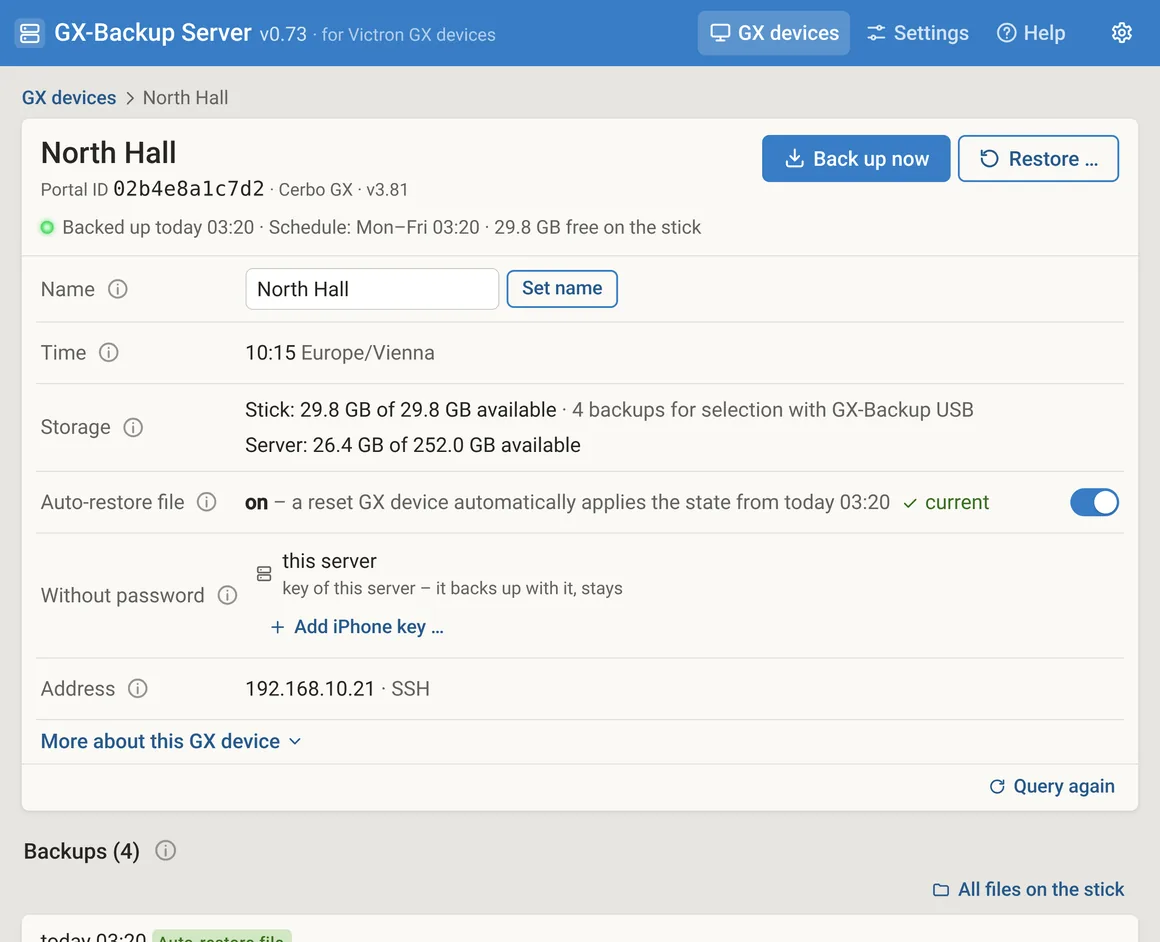
- All installations on one page, restore and device swap over the network
- Install firmware over the network – also older versions, from Victron’s list
- Runs on your own Linux server or a VM in your network – no cloud
- Support by e-mail with your license number
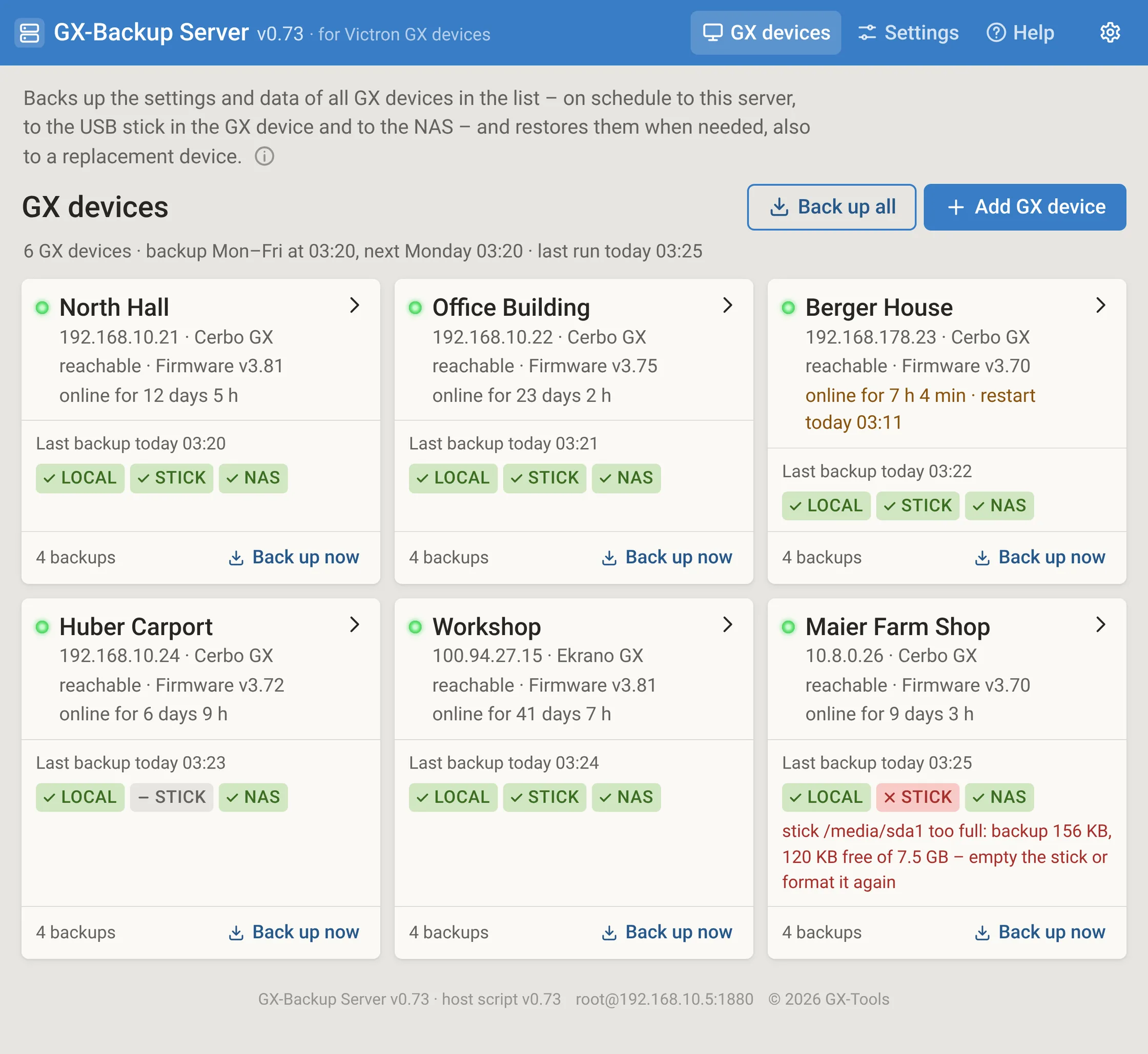
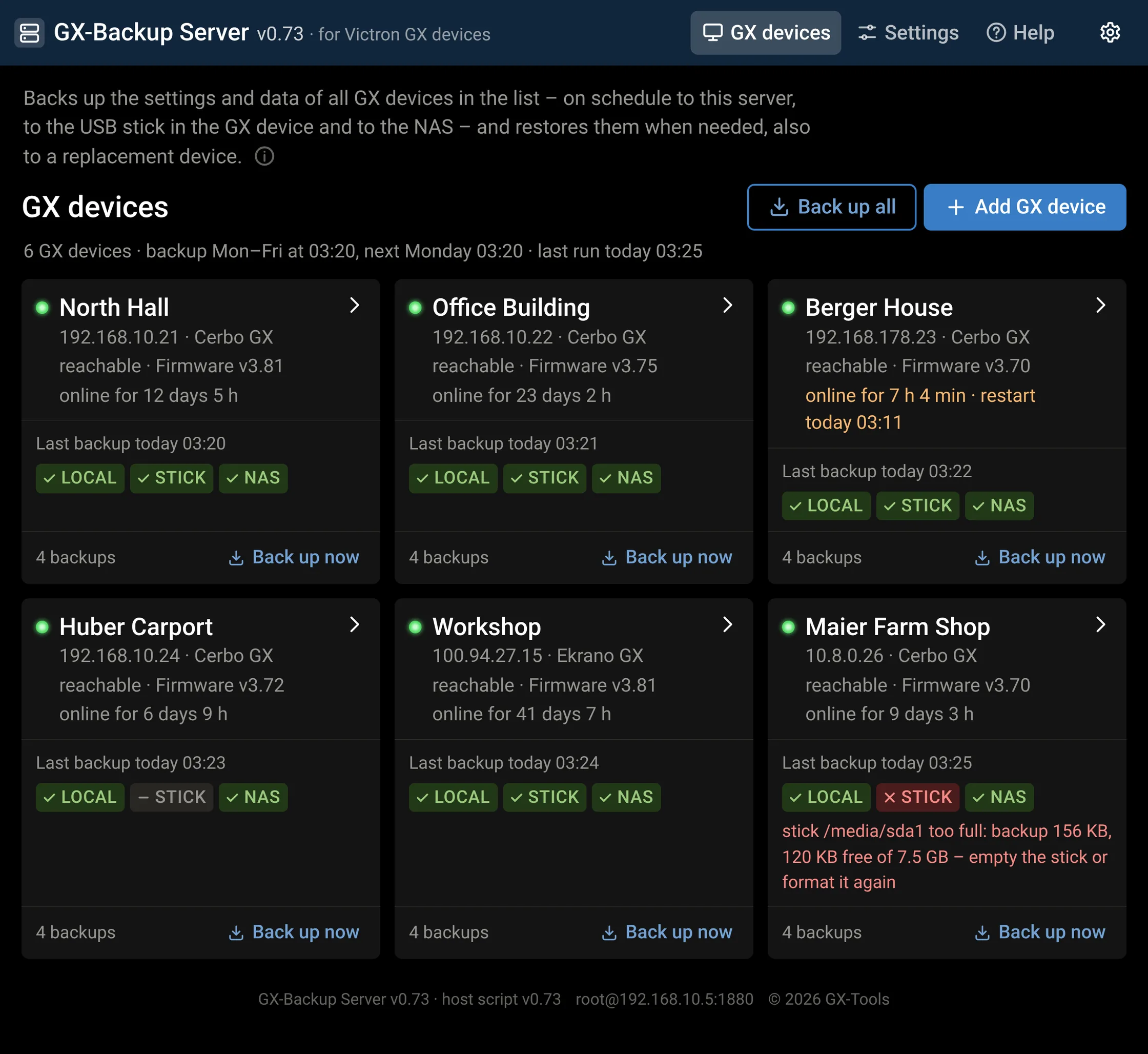
GX-Backup Server: all installations on one page
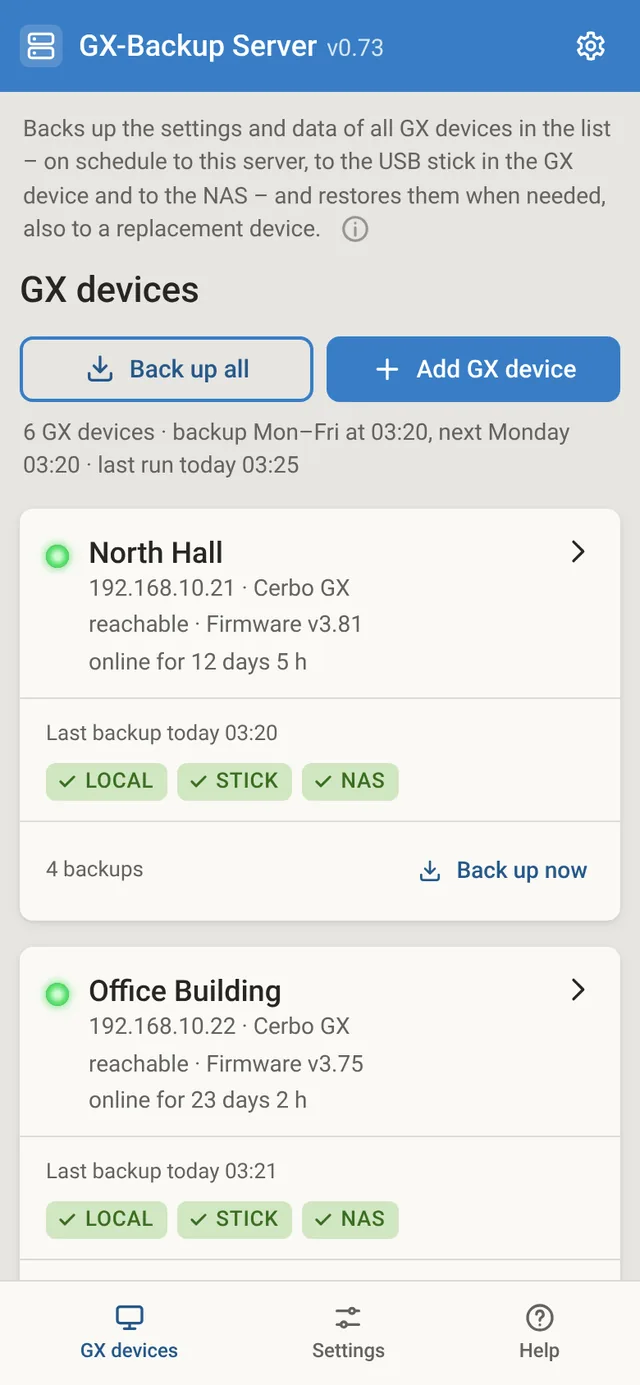
GX-Backup Server backs up all GX devices in its list on a schedule and shows on one page how they are doing. Restores, device swaps and firmware work over the network – from the office.
On schedule, no site visits
At the set time on the selected weekdays – every day or, say, Mon–Fri only – the server backs up all GX devices one after the other. Nobody has to be on site, and no computer runs at the customer’s.
Three copies
LOCAL on the server, STICK in the GX device – with auto-restore file – and on the NAS. If one of them fails, the others are still there.
Status at a glance
One LED per GX device like on the Cerbo, the last backup and “online since …”. A restart during the night, a full stick or a GX device that does not respond stands out right away – whatever went wrong shows in red, with the reason.
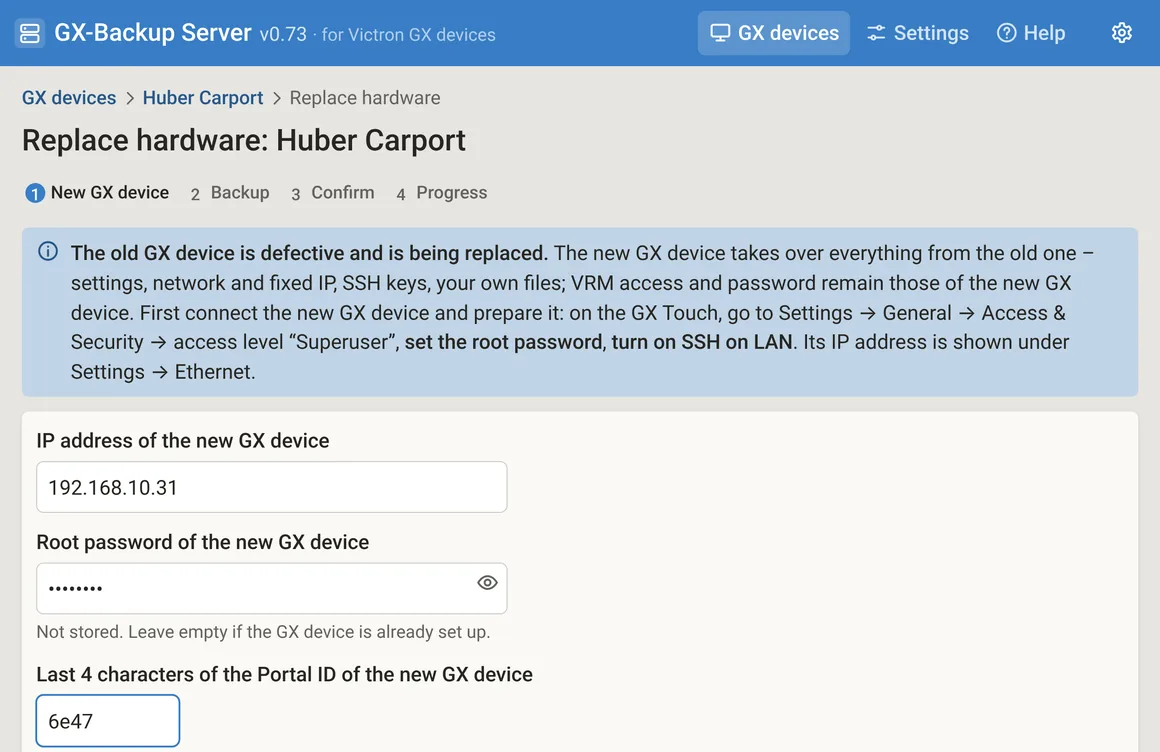
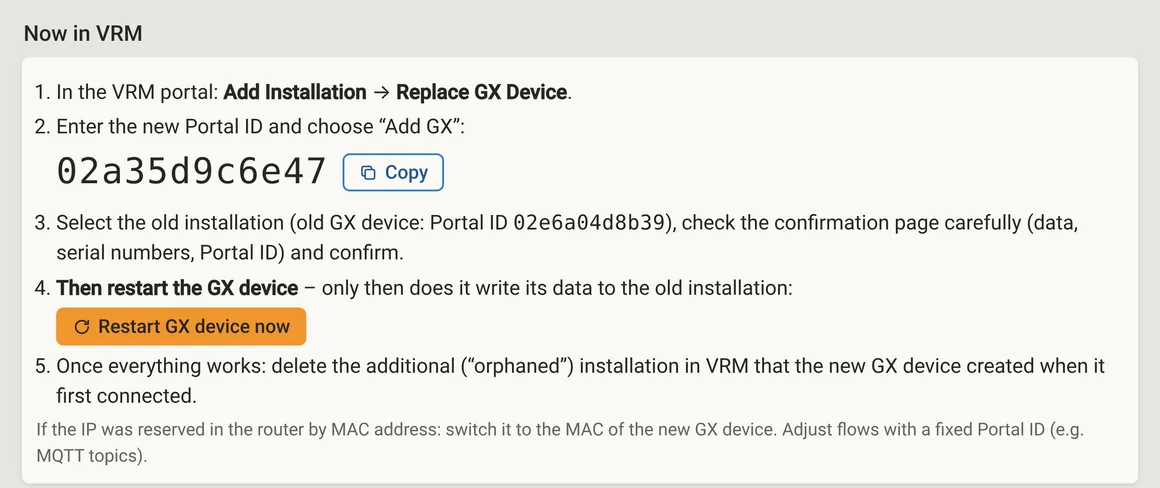
Device swap over the network
Connect the new GX device, enter its IP, the root password and the last 4 characters of its Portal ID, choose a backup. The page checks, restores and shows the steps in VRM; the restart is just a button.
Runs on your premises
On your own Linux server or a VM in your network – no cloud, no account, no data with the vendor. The installations may be in other networks: via VPN at the customer’s or via Tailscale.
Works with GX-Backup USB
Same format: on site, any backup on the stick can be selected and restored with GX-Backup USB, even without a network.
On your phone too, in German and English
The page adapts to computer, tablet and phone. Language and appearance are at the top right.
What the server needs
We will clarify everything else when you get in touch.
- Server
- your own Linux server or a VM in your network, running all the time – for example on Proxmox
- Network
- reaches the GX devices via SSH – on the same network, via VPN at the customer’s or via Tailscale
- GX devices
- Venus OS with root password and “SSH on LAN”, set up once per GX device; a USB stick in the GX device for the STICK copy and the auto-restore file
- NAS
- optional, as a mounted folder, e.g. via NFS
- Access
- in the browser – on computer, tablet or phone, in your own network or via VPN; access can be protected with a login
Request a quote
Tell us how many installations you look after and what you need. The quote comes by e-mail.
Prefer to write directly: kontakt@gx-tools.com
Support for businesses
With a business license, write to us by e-mail – always with your license number, so that we can identify the installation right away.
The license number is shown in the program under the gear at the top right › “License …” – “Copy for inquiries” takes it along with the Portal ID; for business licenses it starts with F. For GX-Backup Server it is in your quote.
Private use with Basic or Pro? Then the help in the program and the community are there for you.
Frequently asked questions
What is backed up – and what is not?
The data area of the GX device (/data) is backed up: all settings, network and static IP, VRM access, SSH keys, factory data and your own files, with Venus OS Large also Node-RED including its flows.
Firmware and root password are not included – a restore never changes the firmware. The settings in connected devices such as MultiPlus, Quattro, solar chargers or BMS live in those devices; they are backed up with VictronConnect or VE.Configure. Also not included is whatever is set in the VRM portal.
Why private use only and at most 5 licenses?
Basic and Pro at fixed prices are meant for private individuals protecting their own installations – one license per GX device, at most 5. If you set up installations for customers, use GX-Backup in a business or have more than 5 GX devices, you get an offer for businesses: GX-Backup USB Pro from 10 licenses or GX-Backup Server.
Does one license cover several GX devices?
No. Each license belongs to one GX device, bound to its Portal ID, and is checked without internet. If the GX device is sold, the license goes with it; if an installation is shut down for good, its license is used up.
What happens after the 30 days?
Without a license, only restoring works then – including the safety copy beforehand – plus the list, download and upload. A backup schedule pauses; an existing auto-restore file stays in place. The trial period belongs to the GX device: downloading again does not reset it.
Where do I get help?
Private use – trial, Basic and Pro: in the help of the program and in the community, where users share their experience. There is no personal support by e-mail for these.
Businesses: in addition, support by e-mail, with the number of your business license – via the form Support for businesses.
Do I need internet or an account?
No account, no cloud: the backups are on the stick in the GX device. Internet is only needed to buy and activate the license; after that it is checked without internet.
The GX device is broken – what now?
With Pro, “Replace hardware” restores the backup to the new GX device, including network, static IP and keys; then the page shows the steps in the VRM portal. The license belongs to the old Portal ID and moves to the new GX device free of charge if the old one failed. Until then, the new GX device runs as a trial with all features for 30 days.
Is my root password safe?
The launcher only passes it on to SSH and keeps it in memory until you quit, never on disk. With “Connect without password from now on” you will not need it at all afterwards.
Which GX devices are supported?
Victron GX devices with Venus OS, such as Cerbo GX, Ekrano GX, Venus GX and Color Control GX. GX-Backup is tested on Cerbo GX – with other GX devices, it is best to try the trial first.
Who sells it and issues the invoice?
For private customers, Polar (polar.sh) sells as the merchant of record: checkout, invoice and VAT. Businesses receive their quote by e-mail.
GX-Backup USB or GX-Backup Server?
With GX-Backup USB, the program and the backups are on the stick in the GX device; backups are made by hand in the browser or on a schedule on the GX device itself.
GX-Backup Server runs on your own Linux server or a VM in your network – no cloud – and backs up the GX devices over the network on a schedule. If there is a stick in the GX device, it stores backups and the auto-restore file there too. Both use the same format – any backup can be restored with either.
Who is liable if something goes wrong during a restore?
Backing up and restoring are at your own risk. Before every restore, the program makes a safety copy of the current state. The details are in the license terms (in German).